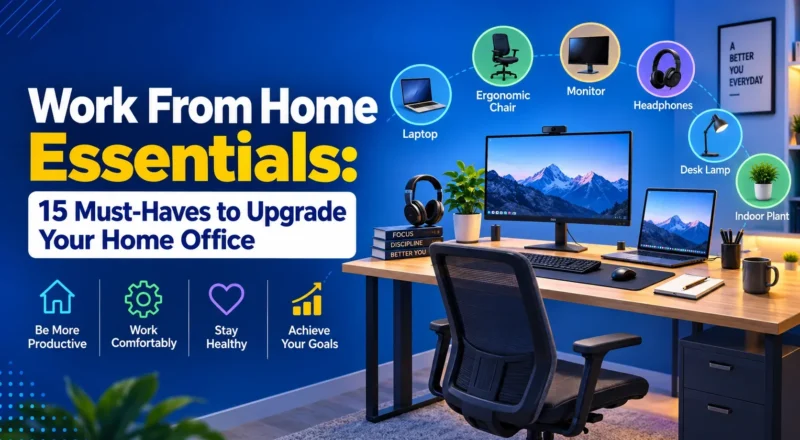
Working from home can be comfortable and flexible, but only when your workspace is set up properly. Spending eight hours hunched over a laptop at the kitchen table can quickly lead to discomfort, distractions, and a poor workday.
The good news is that you don’t need an expensive home office makeover. A few carefully chosen work from home essentials can make your workspace more comfortable, organized, and productive.
Whether you work remotely full-time, pursue high-paying remote side hustles, build a career through freelance jobs in Dubai, or run a small business, the right setup can make a noticeable difference. The best approach is to start with the basics and upgrade your workspace according to your actual needs.
Table of Contents
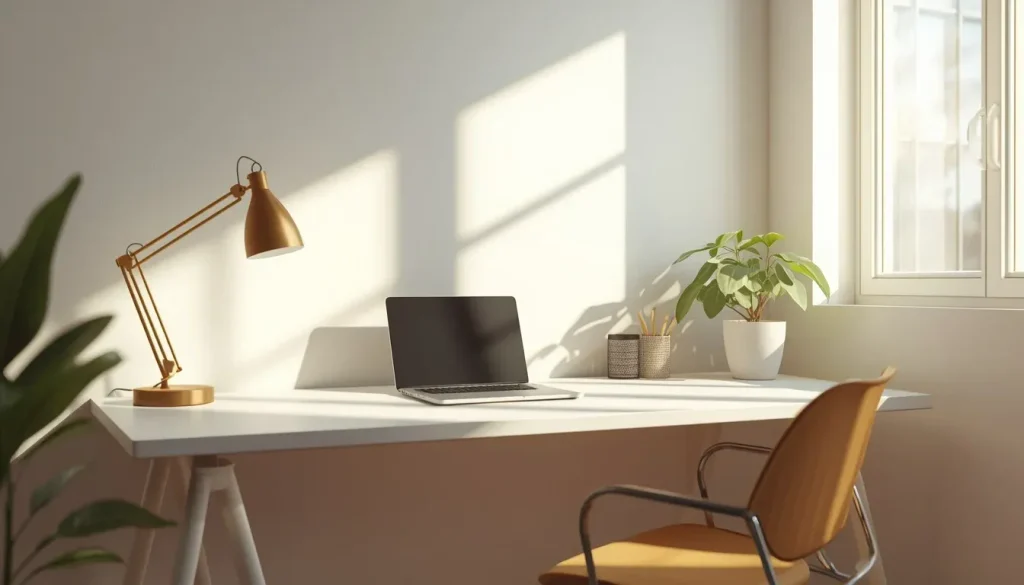
What Are the Most Important Work From Home Essentials?
The most important items include a reliable computer, comfortable chair, suitable desk, dependable internet connection, good lighting, headphones, and basic organization tools.
Your priorities should be comfort and reliability before decorative accessories.
| Essential | Why It Matters | Priority |
|---|---|---|
| Laptop or desktop | Main work device | High |
| Ergonomic chair | Supports comfortable working | High |
| Desk | Provides a dedicated workspace | High |
| Reliable internet | Enables communication and cloud work | High |
| External monitor | Provides additional screen space | Medium-High |
| Keyboard and mouse | More comfortable for extended use | Medium |
| Headset/headphones | Helps with calls and concentration | Medium |
| Desk lamp | Improves task lighting | Medium |
| Webcam | Useful for video meetings | Medium |
| Power strip/surge protection | Helps protect and connect devices | Medium |
| Cable management | Keeps the workspace organized | Low-Medium |
| Desk organizer | Reduces clutter | Low |
| Notebook/planner | Useful for planning | Low |
| Backup storage | Helps protect important files | Medium |
| Plants or décor | Makes the workspace more pleasant | Optional |
Your exact requirements will depend on your profession. A graphic designer may need a large, color-accurate monitor, while someone who mainly handles emails may only need a laptop, desk, and comfortable chair.
1. Start With the Right Home Office Setup
Before buying equipment, decide where you will actually work.
A dedicated room is ideal if you have enough space, but you don’t necessarily need a separate office. A quiet corner of a bedroom or living room can work just as well. Whether you are adjusting to flexible arrangements referenced in a UAE government jobs guide or managing a private remote schedule, establishing a consistent environment is key.
Choose a Consistent Workspace
Try to work from the same location every day. Having a dedicated work area creates a physical boundary between your professional and personal life.
Look for a workspace with:
- Good natural or artificial lighting
- Comfortable temperature
- Minimal background noise
- Nearby electrical outlets
- Enough space for your equipment
- A strong internet connection
If you regularly attend video meetings, also consider what appears behind you. A simple, clean background can make video calls look more professional.
Don’t Put Appearance Ahead of Function
A stylish desk may look great in photographs, but comfort and reliability matter much more.
There’s little value in spending heavily on decorative accessories while working from an uncomfortable chair. Build your home office around the tasks you perform every day.
2. Choose a Comfortable Desk and Chair
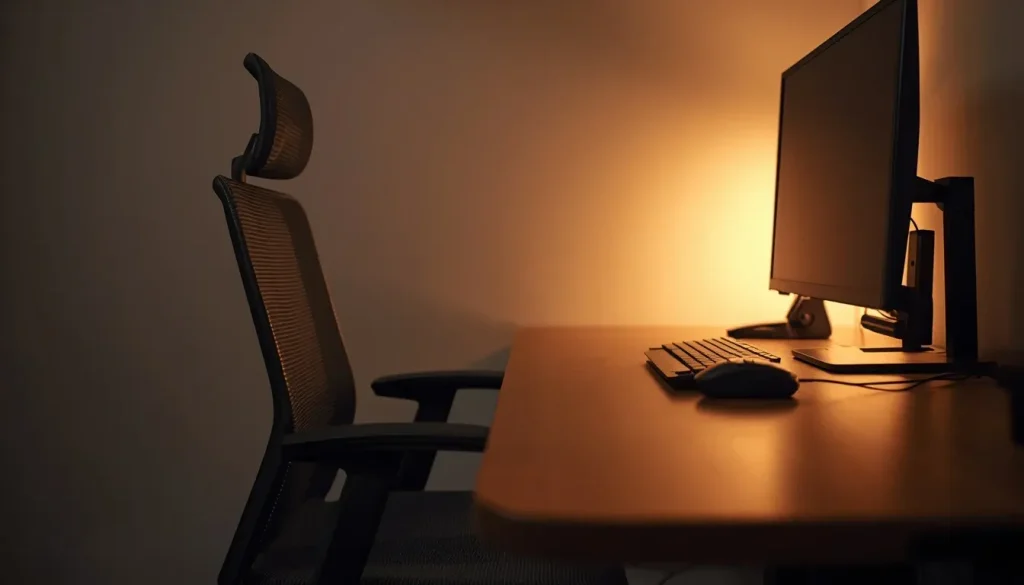
Your desk and chair are among the most important work from home essentials because you may spend many hours using them each week. Maintaining an optimal sitting posture is key to preventing long-term strain, as highlighted in OSHA computer workstation evaluation standards.
What to Look for in a Home Office Desk
Your desk should provide enough room for your computer, monitor, keyboard, and mouse without making the workspace feel crowded.
Consider:
- Desk width
- Legroom
- Desk height
- Monitor placement
- Keyboard and mouse space
- Storage requirements
- Cable access
A very small desk can quickly become cluttered, while an oversized desk may take up unnecessary room. If you’re working in a small apartment, consider a compact desk or wall-mounted fold-out option.
Why Your Chair Matters
A good office chair should allow you to adjust your position throughout the day.
Useful features include:
- Adjustable seat height
- Good back support
- Comfortable seat padding
- Adjustable armrests
- Stable base
- Suitable seat depth
You don’t necessarily need the most expensive ergonomic chair. The important thing is finding a chair that fits your height and body comfortably.
Simple Ergonomic Check
Check your sitting position before starting your workday:
- Keep your feet flat on the floor.
- Keep your shoulders relaxed.
- Position your keyboard comfortably within reach.
- Place your monitor around eye level in alignment with Mayo Clinic’s office ergonomics guidelines.
- Keep your elbows close to your body.
If your workspace consistently causes discomfort, it’s worth reviewing your desk, chair, and monitor positioning.
3. Upgrade Your Computer and Monitor Setup
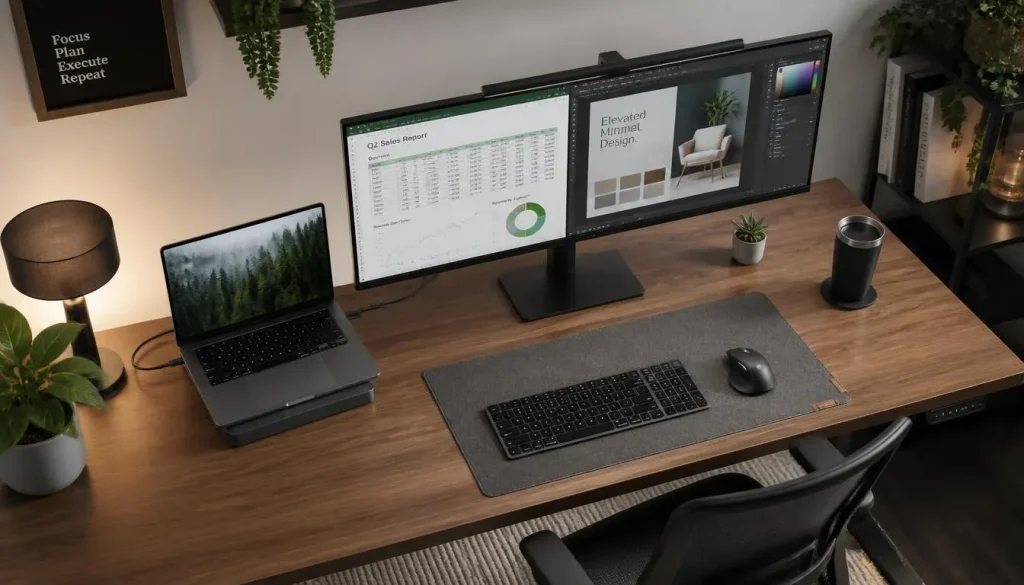
Your computer is the central piece of your home office. Keep the setup practical rather than buying equipment you don’t actually need.
Laptop vs. Desktop
A laptop may be the better choice if you:
- Move between locations
- Work from different rooms
- Travel regularly
- Have limited desk space
A desktop may be more suitable if you:
- Work permanently from home
- Need a large display
- Use demanding software
- Want the option to upgrade components later
For many remote workers, a laptop connected to an external monitor provides a useful balance between portability and productivity.
Is an External Monitor Worth It?
An external monitor can be particularly useful if your job requires multiple applications at the same time.
For example, you could have:
- Email open on one screen
- A document on another
- A spreadsheet beside a video call
- Research visible while writing
Before purchasing a monitor, check its screen size, resolution, and available connection ports.
Don’t Forget the Keyboard and Mouse
Using a laptop trackpad for hours every day can become uncomfortable.
An external keyboard and mouse can give you more flexibility when positioning your laptop and monitor. A basic wireless combination may be sufficient for general office work, while programmers and other specialist users may prefer ergonomic or mechanical options.
4. Make Internet and Power Reliability a Priority
Even the best home office setup becomes frustrating if your internet connection constantly drops.
A dependable internet connection is especially important for video meetings, cloud applications, file sharing, and online collaboration.
Improve Your Wi-Fi
If your desk is several rooms away from your router, connection problems may become more noticeable.
Try:
- Moving the router away from furniture or enclosed spaces
- Using an Ethernet cable
- Setting up a mesh Wi-Fi system
- Moving your desk closer to the router
- Checking the limits of your current internet plan
Before upgrading your internet package, identify where the actual problem is. A Wi-Fi dead zone may be the issue rather than your internet plan.
Prepare for Power Problems
A surge protector can help protect your equipment from electrical surges.
If you experience frequent power interruptions, a UPS can provide temporary battery power so you have time to save your work and shut down your computer properly.
5. Improve Lighting and Video Call Quality
Good lighting is easy to overlook when creating a home office.
Natural light can be useful, but avoid placing your monitor where direct sunlight makes the screen difficult to see.
A Simple Lighting Setup
You can combine:
- Natural light from a window
- Ceiling lighting
- A desk lamp for reading and paperwork
Position a desk lamp so it illuminates your workspace without shining directly into your eyes or onto your screen.
What About Video Meetings?
If you regularly use Zoom, Microsoft Teams, or other video meeting platforms, your microphone and camera become important parts of your setup.
A practical video-call setup can include:
- Built-in laptop camera or external webcam
- Headset or USB microphone
- Light directed toward your face
- Clean background
- Reliable internet connection
You don’t necessarily need an expensive professional camera. Good lighting and clear audio can make a bigger difference to everyday video meetings.
6. Get Headphones and Manage Noise
Noise can quickly interrupt concentration when you’re working from home.
Traffic, pets, deliveries, roommates, and household activity can all become distractions.
Which Type of Headphones Should You Choose?
Consider your working environment:
- Active noise-canceling headphones: Useful in noisy homes.
- Closed-back headphones: Suitable for reducing general background noise.
- Headset with boom microphone: Useful if you spend much of the day on calls.
You can also combine headphones with simple habits, such as closing your office door or scheduling demanding tasks during quieter periods.
7. Keep Your Home Desk Setup Organized
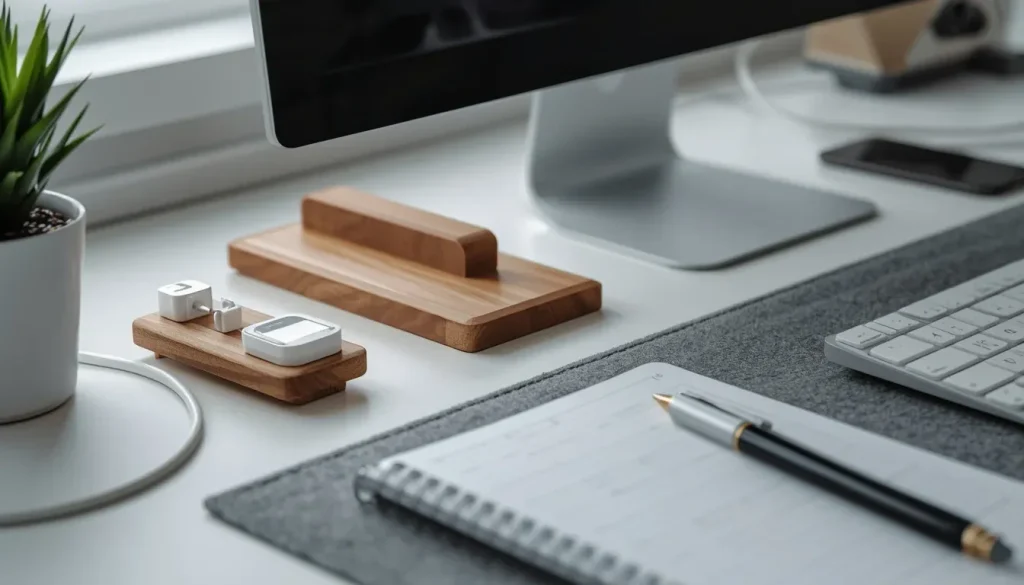
A cluttered desk can make it harder to concentrate.
You don’t need a perfectly minimalist workspace. Instead, keep frequently used items accessible and remove things that don’t belong on your desk.
Useful Organization Essentials
Consider adding:
- Cable clips
- Cable sleeves
- Desk organizers
- Monitor stands
- Drawer organizers
- Document holders
- Small storage boxes
Managing cables underneath your desk can also prevent chargers and monitor cables from becoming tangled.
Use the “Daily Use” Rule
Look at everything currently sitting on your desk and ask: Do I use this every day?
If the answer is no, consider moving the item into a drawer, cupboard, or storage box.
This simple habit can reduce clutter without requiring you to buy anything.
8. Protect Your Files and Work Accounts
A productive home office also needs basic digital security.
Your computer may contain work documents, client information, emails, and other important files. Adopting CISA cybersecurity best practices can safeguard your workstation from modern threats and data loss.
Basic Security Measures
Follow simple security habits such as:
- Use strong, unique passwords.
- Enable multi-factor authentication.
- Install operating system updates.
- Keep important applications updated.
- Use standard security software.
- Lock your screen when stepping away.
- Back up important files.
- Avoid unknown USB drives.
- Be careful with suspicious emails.
If you’re using a company computer, always follow your employer’s IT and security policies.
Back Up Important Files
Cloud storage can be useful, but understand how your backup system actually works.
Check:
- Where your files are stored
- How frequently backups occur
- How deleted files can be recovered
- Who has access to shared folders
- Which backup tools your employer already provides
Setting up automatic backups can save significant time and stress if your computer fails.
9. Add Small Essentials That Improve Daily Comfort
Once your basic setup is working properly, you can add accessories that solve specific problems. Incorporating movement habits, as suggested in Harvard Health insights on healthy posture, will help prevent muscle stiffness throughout long hours.
Useful Optional Additions
Some practical additions include:
- Monitor stand: Raises your screen and creates storage space underneath.
- Laptop stand: Helps position your webcam closer to eye level.
- Desk mat: Protects the desk surface.
- Water bottle: Keeps water within easy reach.
- Notebook: Useful for quick meeting notes.
- Footrest: Helpful if your chair is slightly too high.
- Desk clock: Lets you check the time without reaching for your phone.
The key is to buy accessories because they solve a real problem rather than simply because they look good.
How to Build a Work From Home Setup on a Budget
You don’t need to purchase everything at once. Setting up your workspace gradually aligns well with a broader roadmap to financial freedom, as smart budgeting ensures productivity without unnecessary debt.
A better strategy is to start with what you already own and upgrade the biggest problems first. When balancing office purchases with long-term financial planning—such as setting up a retirement plan in the UAE—prioritizing function over flash is essential.
Step 1: Use What You Own
Start with your existing laptop, desk, or table.
Step 2: Fix Comfort Problems First
If your chair is uncomfortable, prioritize a better chair before decorative lighting or accessories.
Step 3: Improve Screen Position
If your neck hurts when looking down at a laptop, raise the screen using a suitable stand or another stable solution.
Step 4: Improve Connectivity
If your Wi-Fi is unreliable, consider a wired Ethernet connection before spending money on unnecessary computer accessories.
Step 5: Upgrade According to Your Workflow
Only purchase new equipment when you identify a specific problem that needs solving.
Example Budget Priorities
| Budget | Recommended Focus |
|---|---|
| Under $100 | Basic accessories, desk lamp, and organization tools |
| $100–$300 | Better chair, external keyboard and mouse, basic monitor |
| $300–$600 | Higher-quality chair, monitor, connectivity, and key accessories |
| $600+ | Complete workstation upgrades based on professional requirements |
Compare different options before making major purchases.
Common Work From Home Setup Mistakes to Avoid
Even an expensive home office can be uncomfortable if the basics are ignored.
- Working From the Couch Every Day: A couch may feel comfortable initially, but it isn’t necessarily suitable for long work sessions. Use a proper desk or table when possible.
- Buying Too Many Accessories: Too many gadgets can create more clutter instead of improving productivity.
- Ignoring Lighting: Poor lighting can make your workspace uncomfortable and may leave you struggling to see your screen clearly.
- Using an Uncomfortable Chair: If you spend hours at your desk, your chair deserves serious attention.
- Forgetting Cable Management: Loose cables can make the workspace messy and create unnecessary obstacles.
- Neglecting Cybersecurity: Remote workers still need to protect their computers, accounts, and work files.
- Having No Work-Life Boundary: A dedicated work area makes it easier to separate work from personal time.
How to Create a Productive Home Desk Setup
Buying the right equipment is only part of creating a productive home office. Your daily habits matter too.
Try these simple strategies:
- Start work at a consistent time.
- Keep your phone away during focused work.
- Create a daily task list.
- Take regular breaks.
- Keep water nearby.
- Schedule meetings thoughtfully.
- Close unnecessary browser tabs.
- Keep your desk reasonably clear.
- Separate work and personal notifications when possible.
- Finish the day with a simple shutdown routine.
The goal isn’t to create a perfect office. Your setup should simply help you stay comfortable, organized, and focused.
Frequently Asked Questions About Work From Home Essentials
What are the essential items for working from home?
The basic essentials include a reliable computer, comfortable chair, suitable desk, strong internet connection, good lighting, and headphones.
Do I need an expensive home office setup?
No. You can gradually build your workspace over several months. Start with the essentials, particularly a comfortable chair and reliable internet, before purchasing decorative accessories.
Is an external monitor necessary for working from home?
No. You can work with a laptop alone. However, an external monitor can be extremely useful if your job involves spreadsheets, coding, writing, or switching between multiple applications.
How can I make my work from home setup more comfortable?
Start by adjusting your chair so your feet can rest comfortably on the floor. Position your monitor around eye level, keep your shoulders relaxed, and take regular breaks away from your desk.
What should I buy first for a home office?
Start with a reliable computer and comfortable chair. An external keyboard and mouse can be useful next, followed by a monitor or other equipment based on your daily workflow.
Final Thoughts
Creating a productive home office doesn’t require a massive budget or a high-tech renovation.
Start with the essentials: a reliable computer, comfortable chair, suitable desk, dependable internet, and good lighting. Once those basics are covered, you can improve your monitor setup, organization, security, and accessories according to your needs.
The best home office isn’t necessarily the most expensive one. It’s the setup that makes your everyday work more comfortable, reliable, and focused.
Before buying anything else, identify the three biggest problems with your current workspace. Fix those first, then upgrade gradually as your needs change.